iTunesin turvallinen poistaminen: Vaiheittainen opas Macille ja PC:lle

Viekö iTunes liikaa tilaa tai aiheuttaako se ongelmia tietokoneellasi? Vanhat mediatiedostot, välimuistit ja varmuuskopiot voivat hidastaa järjestelmän suorituskykyä ja aiheuttaa synkronointiongelmia. Sinun on ehkä poistettava iTunes ja asennettava se uudelleen näiden ongelmien korjaamiseksi. Tässä oppaassa näytämme sinulle. iTunesin poistaminen turvallisesti ja poista siihen liittyvät tiedostot sekä Macilla että Windowsilla, jotta saat järjestelmäsi taas toimimaan sujuvasti.
SIVUN SISÄLTÖ:
Osa 1: iTunesin asennuksen poistaminen Windowsista
Jos haluat poistaa iTunesin Windows-tietokoneeltasi, pelkkä pikakuvakkeen tai kansion poistaminen ei poista sitä kokonaan. Jäljelle jääneet tiedostot ja komponentit voivat viedä tilaa tai aiheuttaa häiriöitä tietokoneellasi. Alla on kaksi luotettavaa tapaa poistaa iTunes kokonaan:
iTunesin asennuksen poistaminen asetusten kautta - Windows 10/11
Windows 10- ja 11-käyttäjät voivat poistaa sovelluksia suoraan Asetusten kautta. Se on nopein ja nykyaikaisin tapa poistaa iTunes.
Vaihe 1. Avaa Start Menu ja valitse Asetukset.
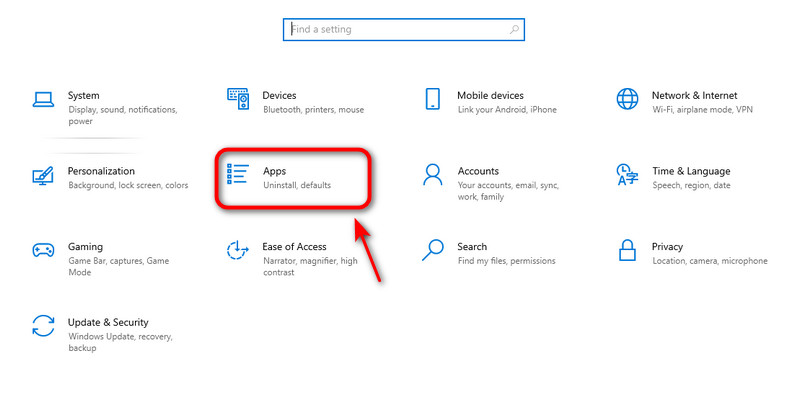
Vaihe 2. Napauta Apps på den Asetukset ikkunassa.
Vaihe 3. Tyyppi iTunes hakupalkissa. Kun iTunes tulee näkyviin, paina sitä ja napsauta Uninstall.
Vaihe 4. Napauta Uninstall vahvista uudelleen. Tämän jälkeen ohjelmisto poistetaan pian. Toista vaiheet poistaaksesi iTunesiin liittyvän ohjelmiston. Käynnistä lopuksi tietokone uudelleen.
Ohjauspaneelin käyttö – kaikissa Windows-versioissa
Ohjauspaneeli toimii kaikissa Windows-versioissa. Riippumatta siitä, mitä Windows-versiota käytät, voit poistaa iTunesin kokonaan tällä luotettavalla menetelmällä.
Vaihe 1. Avaa Start Menu ja kirjoita "Ohjauspaneeli" ja napsauta sitä.
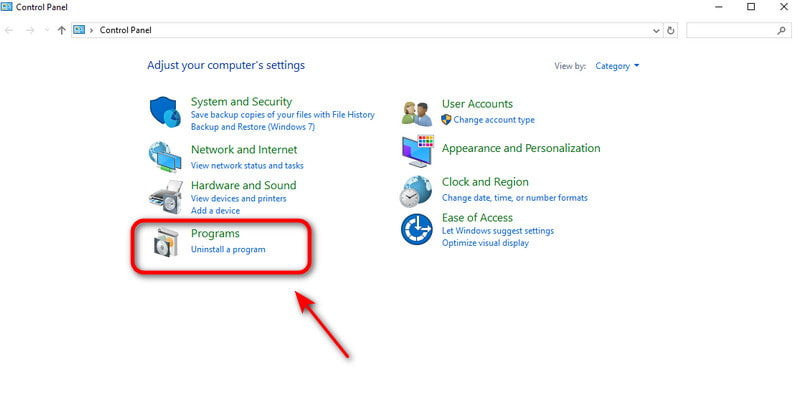
Vaihe 2. Valita Poista ohjelmisto Ohjelmat-osiossa.
Vaihe 3. Kirjoita hakukenttään "iTunes". Kun iTunes tulee näkyviin, paina sitä ja napsauta Uninstall.
Vaihe 4. Napauttaa Uninstall vahvista uudelleen. Tämän jälkeen ohjelmisto poistetaan pian. Toista vaiheet poistaaksesi iTunesiin liittyvän ohjelmiston. Käynnistä lopuksi tietokone uudelleen.
Osa 2: iTunesin asennuksen poistaminen Macista
iTunesin poistaminen Macista riippuu macOS-versiostasi. Catalinan jälkeen iTunes on korvattu erillisillä sovelluksilla: Apple Music, Apple TV, Apple Books ja Apple Podcasts, mikä tarkoittaa, että uudempien järjestelmien käyttäjien ei tarvitse poistaa iTunesia. Mutta macOS Mojavessa tai vanhemmissa versioissa iTunes on edelleen ydinjärjestelmäsovellus, joten voit poistaa iTunesin noudattamalla muutamia teknisiä vaiheita.
Paras tapa poistaa iTunes kaikista Mac-malleista
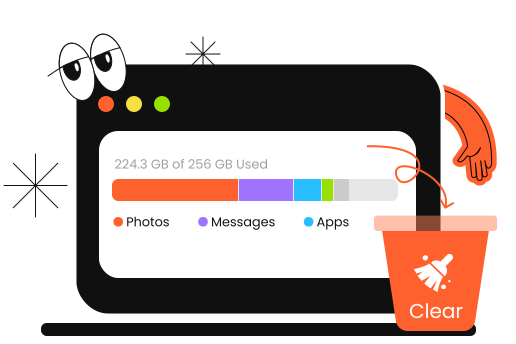
iTunesin asennuksen poistaminen on monimutkainen tehtävä, mutta Apeaksoft Mac Cleaner tekee siitä yksinkertaista. Se toimii kaikissa Mac-malleissa ja voi helposti ja kokonaan poistaa käyttämättömät sovellukset ja niiden jäljellä olevat tiedostot Macista. Lisäksi Mac Cleaner voi valvoa järjestelmän suorituskykyä, vapauttaa tallennustilaa Macilla ja tehostaa Macisi nopeutta.
Älykäs avustajasi Macin kunnon valvontaan
- Poista sovellukset ja niihin liittyvät tiedostot kokonaan Macista.
- Poista tarpeettomat asetukset käytöstä parantaaksesi järjestelmän suorituskykyä.
- Poista roskapostitiedostot/välimuisti/kopiot/iTunes-varmuuskopiot Maciltasi.
- Seuraa Mac-tietokoneesi tilaa ja terveyttä reaaliajassa.
Suojattu lataus
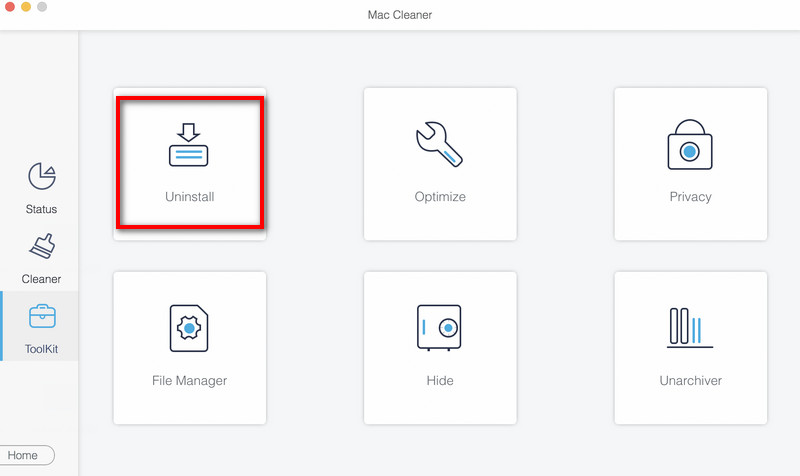
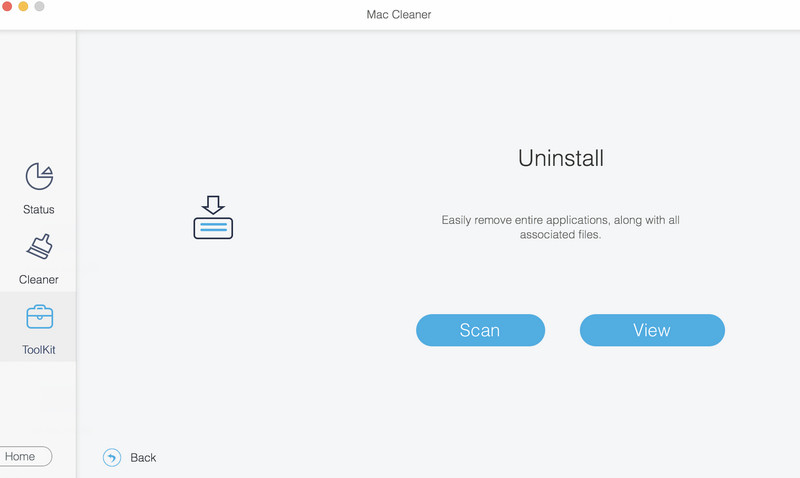
Vaihe 1. Käynnistä Mac Cleaner ja valitse Toolkit käyttöliittymässä ja valitse Uninstall.
Vaihe 2. Napauta Skannata skannataksesi kaikki Mac-tietokoneesi sovellukset nopeasti. Napsauta Näytä tarkistaaksesi Macin turhat sovellukset.
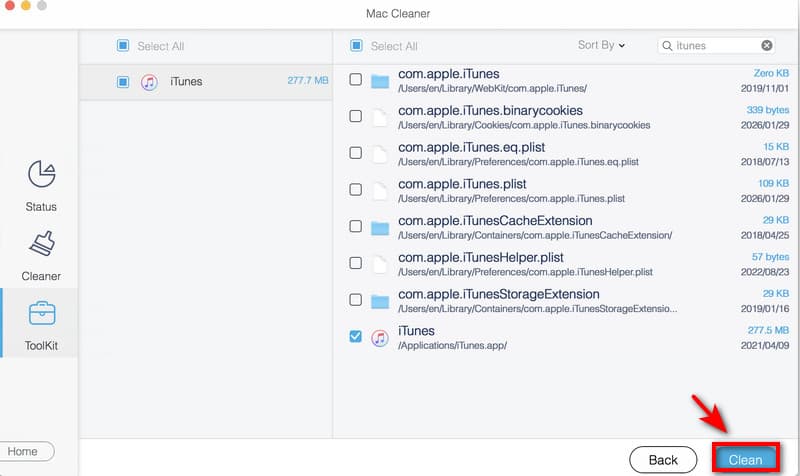
Vaihe 3. valita iTunes ja valitse Clean poistaaksesi sen Macistasi.
Käytä Päätettä - macOS Mojave tai vanhempi
macOS Mojave 10.14:ssä tai vanhemmassa versiossa voit poistaa iTunesin kokonaan päätekomennoilla. Ennen poistamista sinun on ensin poistettava SIP käytöstä. Noudata alla olevia ohjeita ja toimi huolellisesti.
Vaihe 1. paina Command + Space painikkeet yhteen. Kirjoita Activity Monitor hakupalkissa. Jos iTunes on auki, kaksoisnapsauta iTunes ja valitse LopettaaVarmista, että iTunes ei ole käynnissä.
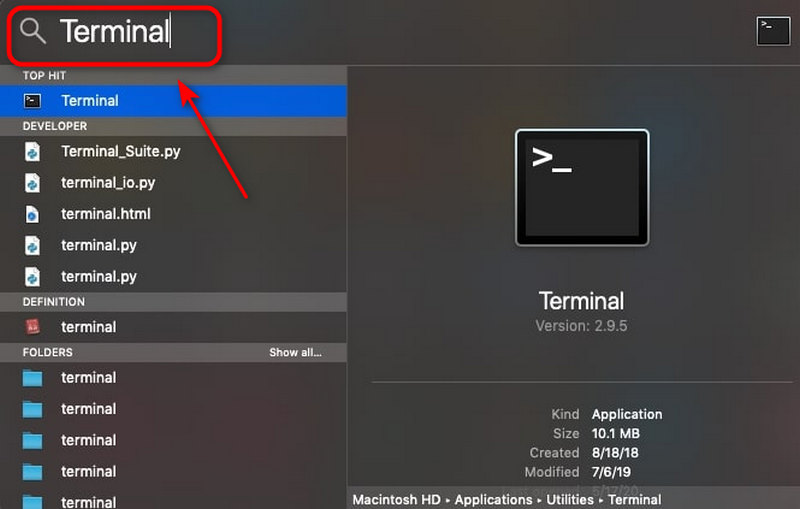
Vaihe 2. paina Command + Space painikkeet uudelleen, kirjoita terminaali hakuikkunassa ja paina enter.
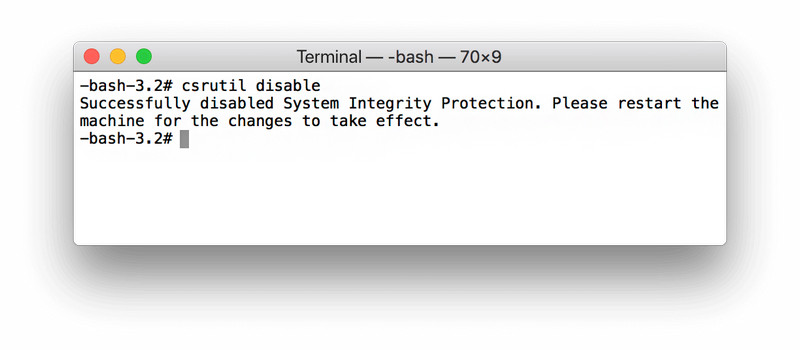
Vaihe 3. Tyyppi csrutil käytöstä poistaaksesi Applen järjestelmän eheyden suojauksen käytöstä.
Vaihe 4. enter cd /Sovellukset/ ja paina Palata avaa Sovelluskansio terminaalista.
Vaihe 5. enter sudo rm -rf iTunes.app/ ikkunassa ja paina Palata. Anna Mac-järjestelmänvalvojan salasanasi salliaksesi poistoprosessin. Tämän jälkeen iTunes poistetaan tietokoneeltasi pian.
Vaihe 6. Muista poistaa iTunesiin liittyvät tiedostot tyhjennä järjestelmätiedot MacissaKirjoita seuraavat komennot Päätteessä:
- rm -rf ~/Kirjasto/Asetukset/com.apple.iTunes.plist
- rm -rf ~/Kirjasto/Asetukset/com.apple.iTunesHelper.plist
- rm -rf ~/Kirjasto/Välimuistit/com.apple.iTunes
- rm -rf ~/Kirjasto/Sovellustuki/iTunes
Huomautus: Kun olet poistanut iTunesin Macista, muista ottaa järjestelmän eheyden suojaus uudelleen käyttöön. Tämä vaihe suojaa järjestelmätiedostojasi ja -sovelluksiasi vahingossa tapahtuvalta muokkaamiselta tai poistamiselta. Noudata seuraavia ohjeita: Käynnistä Mac uudelleen > Avaa terminaali ja tyyppi mahdollistavat csrutil komentoikkunassa > Paina Palata.
Finderin käyttö - macOS Catalina tai uudempi
macOS Catalina 10.15:ssä ja uudemmissa Apple poisti iTunesin ja korvasi sen Musiikki-, TV-, Kirjat- ja Podcast-sovelluksilla. Nämä sovellukset ovat sisäänrakennettuja järjestelmään, eikä niitä voi poistaa, mutta voit poistaa tarpeettomia tietoja Finderin kautta.
Vaihe 1. avoin löytäjä ja valitse Siirry kansioon.
Vaihe 2. Syötä yksi polku kerrallaan alla ja napsauta Go.
- Musiikin lataukset: ~/Musiikki/
- TV-ohjelmat ja elokuvat: ~/Elokuvat/TV/
- Podcastien lataukset: ~/Musiikki/Podcastit/
Vaihe 3. Vedä ei-toivotut tiedostot tai kansiot kohteeseen Roskakori.
Vaihe 4. Napauta Siirry kansioon ja kirjoita seuraava polku ja napsauta Go.
- ~/Kirjasto/Säilytysastiat/com.apple.Musiikki/
- ~/Kirjasto/Säilytystilat/com.apple.TV/
- ~/Kirjasto/Säilöt/com.apple.Podcasts/
Vaihe 5. Poista kaikki tiedostot kussakin kansiossa.
Osa 3: Usein kysytyt kysymykset iTunesin asennuksen poistamisesta
Miksi en löydä iTunesia Macistani?
Jos Macissasi on macOS Catalina tai uudempi, iTunesia ei enää ole järjestelmäsovelluksena. Apple jakoi sen erillisiin sovelluksiin: Musiikki, TV ja Podcastit.
Miten poistan Macista sovelluksia, joita en voi poistaa?
Helpoin tapa sovellusten poistaminen Macista on käyttää kolmannen osapuolen asennuksenpoisto-ohjelmaa, kuten Apeaksoft Mac Cleaneria. Voit myös poistaa sovelluksia Päätteellä kirjoittamalla seuraavat komennot: cd /Applications ja sudo rm -rf AppName.app.
Miksi iTunes vie tilaa asennuksen poistamisen jälkeen?
Median lataukset, välimuistitiedostot, varmuuskopiokansiot tai muut asiaan liittyvät tiedostot saattavat jäädä asennuksen poistamisen jälkeen. Voit poistaa nämä tiedostot manuaalisesti Finderin avulla ja tyhjentää roskakorin.
Yhteenveto
Yhteenvetona voidaan todeta, että olemme tutkineet erilaisia tapoja asenna iTunes Macilla tai Windowsilla. Muista varmuuskopioida tärkeät tiedostosi ensin ja toimi huolellisesti, jotta vältät tärkeiden tiedostojen poistamisen vahingossa. Jos haluat helpomman ja turvallisemman puhdistuksen, kokeile Apeaksoft Mac Cleaneria poistaaksesi käyttämättömät sovellukset tai vapauttaaksesi tallennustilaa!
Aiheeseen liittyvät artikkelit